Your whole file, on your phone and your computer.
Back up with a code only you have, and sign in at invokedapp.com with a six-digit code from your phone. Long forms and letters are easier on a full-size screen.
What it does
Encrypted before it leaves
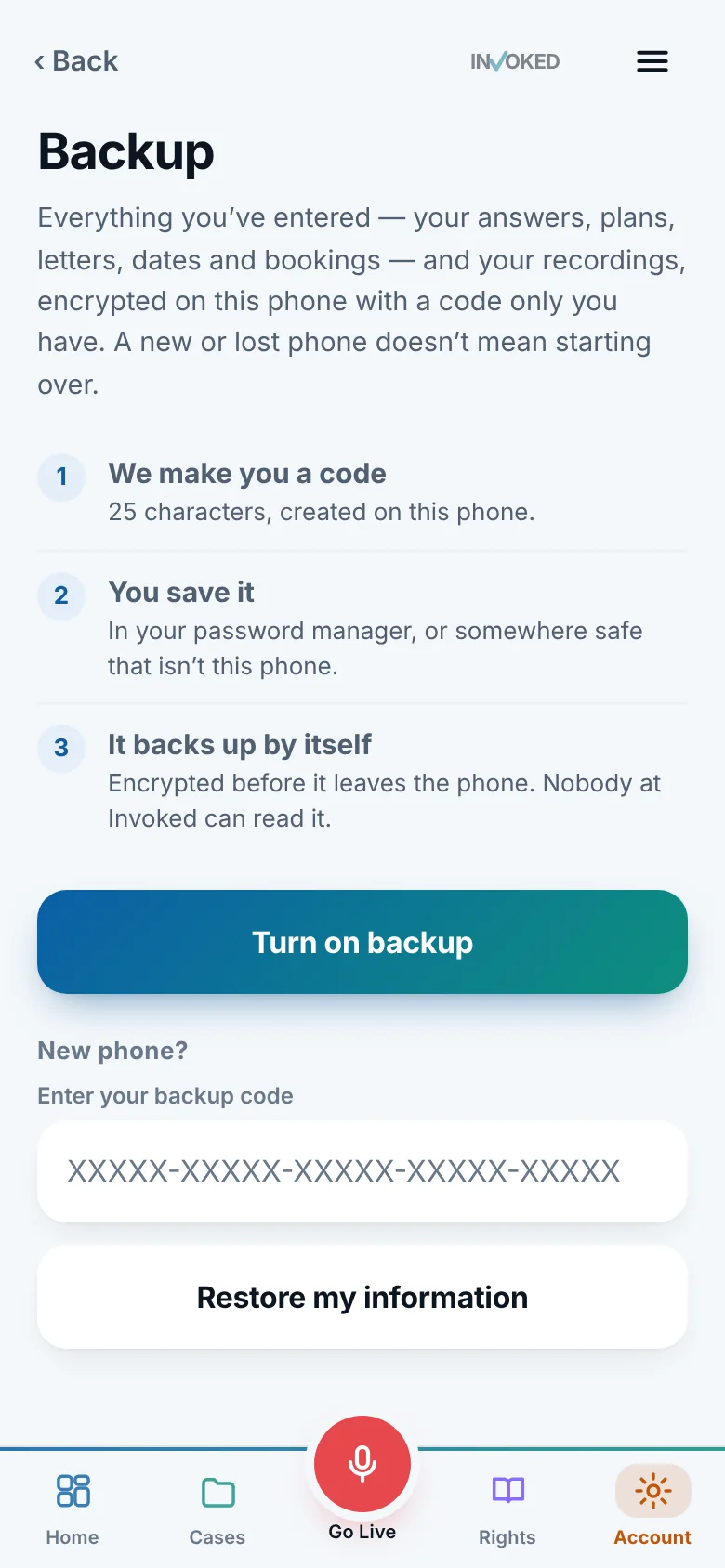
Your backup is locked on your phone with a 25-character code only you have. Invoked can’t read it.
Automatic
It updates on its own whenever something changes.
A new phone is not a fresh start
Enter your code and your cases, letters and dates come back.
Sign in with your phone
The website shows a six-digit code. Type it into the app, check that both screens show the same four digits, and tap Send.
Everything the phone can do
Read, edit and print your cases, letters and packets. Record from your computer’s microphone.
In step
Change something on your phone or the website and the other follows.
How it works
Three steps, and the app guides you through each.
- 1
Turn on backup
Account › Backup. The app makes your code. Save it somewhere safe.
- 2
Open the website
Go to invokedapp.com/app and look for the six-digit code.
- 3
Type it in the app
Account › Backup › Sign in on a computer.
Private on the web too
Your file is unlocked in your browser. The server only holds an encrypted copy it can’t read.
No password to forget
Your phone is the key. The 25-character code works as a backup way in.
Phone-only features
Face ID, crash alerts, the Watch, dictation, on-device AI and membership purchases stay on the phone.
Questions about backup and the website
What if I lose my backup code?
Invoked can’t recover it, because that’s what keeps your backup private. Save it in a password manager or somewhere that isn’t only on your phone.
Can Invoked read my backup?
No. It’s encrypted on your phone with your code before it’s sent.
Do I need to buy anything to use the website?
No. You sign in and see your own file. Membership and purchases are made in the iPhone app.
Does the website work without my phone?
You need your phone to sign in the first time on a computer, or your 25-character backup code.
Related guides
Keeping your recordings safe after a stop or crash
How to protect a recording of a police stop or crash: lock your phone, keep the original, back it up, share it carefully, and why not to post it first.
5 min readRecording & safetyRecording tips for clear, usable audio during a stop or crash
Where to put your phone, how to start early, how to cut background noise and what to say so a recording of a stop or crash is clear and useful later.
5 min readAccidents & injuriesWhat to do after a car accident: a practical checklist
What to do at the scene of a crash and in the days after: safety, information to exchange, photos, police reports, insurance calls and records to keep.
5 min readKeep exploring
Recording
Start recording with one tap, Siri, the Action Button or the Lock Screen. Invoked keeps recording with the screen off and encrypts it on your phone.
Learn moreEvidence packet
Invoked builds an evidence packet from your recording, answers, photos and notes: a timeline, findings and letters, organized the way an attorney wants it.
Learn moreLetters
Invoked writes the letters you need: bodycam footage requests, complaints, ticket contests, records requests and tow demand letters. You review and send them.
Learn moreThe app we hope you never need.
It takes two minutes to set up, and it’s there the moment you do.
Already have it? Sign in on the web.